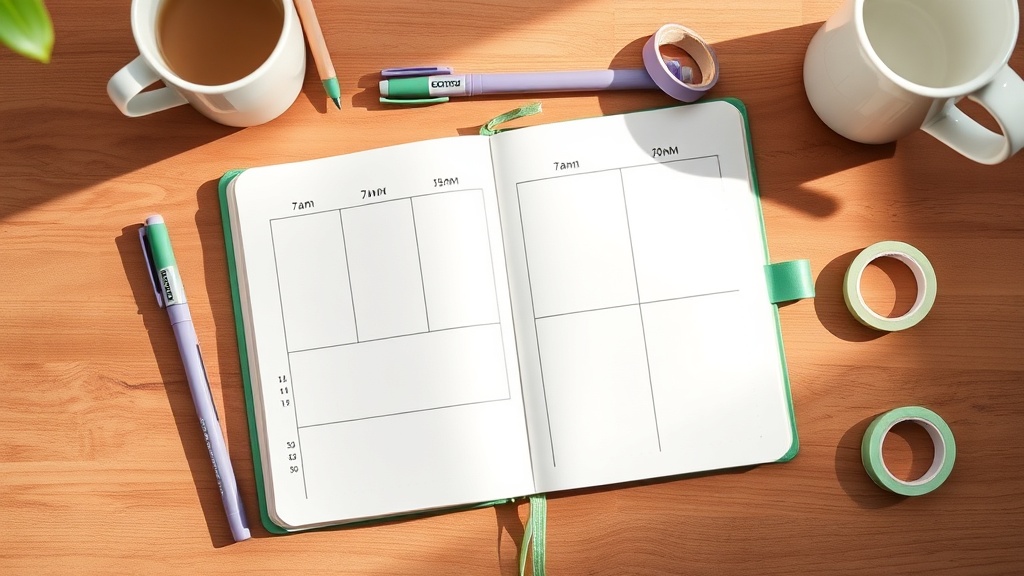
How to Set Up a Time-Blocked Weekly Spread That Actually Keeps You Organized

Okay okay okay I need to show you this spread because it's the one I use EVERY SINGLE WEEK and it's the reason I actually stick to my planner.
It's called time-blocking, and if you've tried bullet journaling before and felt like your to-do list just became a graveyard of unchecked boxes, this is the layout that fixes that.
Here's the thing: a to-do list without time attached to it is just a wish list. You can write "work on project" all you want, but if you don't know WHEN that happens, it doesn't happen. Time-blocking takes your tasks and gives them a home in your day.
And the best part? It looks BEAUTIFUL when it's done. Functional and gorgeous. That's the dream.
What You'll Need
Before we start, here's what I use:
- Leuchtturm1917 A5 Dotted Notebook ($20) — the dots make this layout so much easier
- Tombow Dual Brush Pens ($3 each) — I use colors 623 (purple sage) and 126 (olive green) for this spread
- Zebra Mildliner Highlighters ($5 for a set) — for soft color coding
- Sakura Pigma Micron 03 ($3) — for clean lines that don't bleed
- Washi tape ($3-5 per roll) — one coordinating color for the header
Budget option: ANY dotted notebook (Moleskine is $15, the Amazon Basics dotted is $8), any fineliner pen, and you can skip the washi tape and just use the pen for borders. I've done this layout in a $3 composition notebook and it works exactly the same.
Step-by-Step Setup
Step 1: Create Your Header
Across the top of your two-page spread, write your week. I do "Week of February 24" in brush lettering using my Tombow 623. Keep it simple — this isn't about perfect calligraphy, it's about creating a visual anchor.
Add a thin washi tape border underneath or draw a line with your fineliner. This separates your header from the actual planning space.
Step 2: Draw Your Daily Columns
Here's the magic: divide your spread into 7 equal columns (or 5 if you only plan weekdays — I do 7 because weekends need structure too).
Each column gets a day of the week at the top. I write these in all caps with my Tombow 126 (the sage green) for contrast.
Pro tip: Use the dots! In a dotted notebook, count 5 dots per column and you'll get even spacing without a ruler.
Step 3: Add Your Time Blocks
Now here comes the game changer. Along the left side of your spread, write your hours. I do 7am to 9pm because that's my active day, but you do YOU — if you're a 6am person, start there. If you're a night owl, extend it.
Put the hours in small print along the left margin: 7, 8, 9, 10, etc. You don't need to write "am/pm" — you'll know.
Step 4: The Time-Blocking Magic
This is where it gets good. Instead of a to-do list, you're going to block your actual time.
Look at your week. What are your fixed appointments? Write those in first — meetings, classes, appointments, commitments. Use a box or just write them directly in the time slot.
Now look at your tasks. "Email" isn't a task — "Email: 30 minutes" is. "Project work" isn't a task — "Project work: 2 hours, Tuesday 2-4pm" is.
Block out time for:
- Deep work (no interruptions)
- Shallow work (email, admin, quick tasks)
- Meetings/calls
- Meals (yes, actually block lunch)
- Exercise
- Personal time
I use color coding here: purple for work, green for personal, yellow for appointments. But you do whatever makes sense to you.
Step 5: The "Wins" Box
In the bottom right corner, leave space for a small box labeled "Wins This Week." This is non-negotiable for me. Every Friday, I write down 3 things that went right. It trains your brain to notice success instead of just crossing off tasks.
Why This Layout Actually Works
I've tried probably 20 different weekly layouts. The reason this one stuck is because it solves three problems:
1. It prevents overcommitment. When you see your time visually, you can't magically add a 3-hour project to a day that's already full. The blocks don't lie.
2. It creates realistic expectations. You stop thinking "I'll do that tomorrow" and start thinking "I have 90 minutes of focused time Tuesday morning — that's when this happens."
3. It's flexible but structured. Things change? Cool — just move the block. The structure holds even when plans shift.
Customization Ideas
If you're minimal: Skip the color coding. Use one pen, simple lines, no decoration. The time blocks are the organization — everything else is bonus.
If you're extra: Add sticker headers, decorative washi tape borders on each day, drop shadows on your boxes, the works. The structure supports the decoration.
If you're digital: This layout works PERFECTLY in GoodNotes or Notability. Use the highlighter tool for your time blocks and duplicate the template weekly.
The Setup Time
This takes me about 30-35 minutes to set up on Sunday evening or Saturday morning. I know that sounds like a lot, but here's the thing: that 30 minutes saves me HOURS of decision-making during the week.
When I open my planner on Monday, I don't wonder what I should do. I look at my 9am block and I do that thing. Decision fatigue = gone.
Supply List Recap
My picks:
- Leuchtturm1917 A5 Dotted: $20
- Tombow Dual Brush Pen 623 & 126: $3 each
- Zebra Mildliner set: $5
- Sakura Pigma Micron 03: $3
- Washi tape (Michael's): $4
- Total: ~$38
Budget alternative:
- Amazon Basics Dotted Notebook: $8
- Pilot G2 pen (any color): $2
- Crayola Supertip markers: $5 for 10
- Total: ~$15
Both work. The expensive stuff is more fun to use, but the $15 setup will keep you just as organized.
Show Me Yours!
I want to see your time-blocked spreads! Tag @artsyagenda on Instagram or drop a comment below with your color scheme. Are you a purple-and-sage person like me, or are you rocking something completely different?
And if you try this layout, let me know — did it actually help you get more done, or did you just enjoy looking at it? (Both are valid answers, by the way.)
Happy planning!
— Lina
]]>